Blog
How to Find and Fix Broken WordPress Links with CortexWP
You don’t need to click through every page to find broken WordPress links. CortexWP’s broken link checker scans your pages for failed links and missing images, shows which pages contain them, and gives you a place to review the results and redirects.
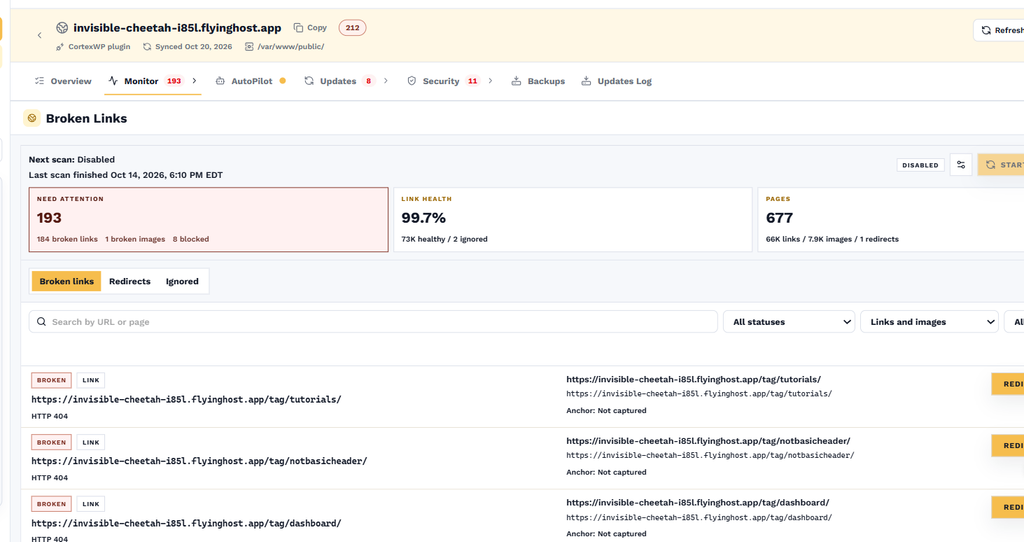
Open your connected site in CortexWP and choose Monitor → Broken Links. From there you can start a scan, schedule future checks and filter the results. Here’s how to use those controls without treating every failed request as a link that must be redirected.
What CortexWP scans for broken links and images
CortexWP crawls your WordPress website to test links and image resources. Results can include the source page, destination URL, HTTP status or failure reason, so you can identify where a broken reference appears instead of searching through every post manually.
A missing image isn’t the same as a broken hyperlink. Both matter: one leaves a gap in the page’s design, while the other can prevent a visitor from reaching a useful page. The checker reports them separately and tracks an overall link health metric after each completed scan.
Open Broken Links in CortexWP
Sign in to CortexWP, open Sites, and choose a connected website. Select Monitor → Broken Links from the site navigation. The dashboard shows the last completed scan, next scheduled scan, link health, scanned pages and resources needing attention.
Use the search field to find a particular URL or page. The filters allow you to focus on broken links or broken images, as well as first-party or third-party URLs. First-party problems are usually URLs belonging to your own site; third-party failures are destinations hosted elsewhere. Separating them helps you decide what you can repair directly and what depends on another website.
Run a CortexWP broken-link scan or schedule it
CortexWP supports recurring scans every day, every two days, every three days, or weekly. You can also disable recurring checks when you don’t want background scanning. On the Broken Links page, choose the scan settings for your preferred schedule; use Start Scan when you need a fresh check immediately.
A regular scan is useful after migrations, permalink changes or a large content update. If you’ve just corrected several dead links, an on-demand scan lets you recheck the current state rather than waiting for the next scheduled run.
Control how much load the scanner puts on your site
On the Broken Links dashboard, open the settings gear icon. The Requests per minute setting limits how many requests CortexWP is allowed to make to your server during a scan. A lower value makes the crawl slower but reduces its request rate; a higher value finishes scans faster but generates more traffic.
If the site is on limited hosting or already busy, start conservatively. You can adjust the limit later once you know how the site handles the checks. CortexWP also does not run broken-link checks while the website is detected as down, avoiding extra work against an unavailable site.
Manage broken URLs and redirects in CortexWP
When a page has moved permanently, a 301 redirect is often the right way to send visitors from the old URL to its replacement. In CortexWP, open the Redirects tab or use the redirect action next to an affected URL to create a rule. Review the source and destination carefully before applying it, especially when the broken URL appears on multiple pages.
A redirect is not the best fix for every problem. If a menu link points to a typo, update the original link as well. If an image was deleted, restore or replace the image. If an external resource is temporarily unavailable, it may be better to retry later than redirect visitors somewhere unrelated. CortexWP’s redirect tools let you handle appropriate cases without installing a separate redirection plugin.
When to ignore a URL
Some destinations intentionally block automated requests, even though the link opens correctly for regular visitors. If you verify that a URL is a known exception, CortexWP lets you ignore it so it doesn’t keep appearing in future scan results or lowering your link health metric. Use this for genuine exceptions, not as a substitute for fixing links that visitors cannot open.
The WordPress site health guide explains how link checks fit alongside uptime, security and PHP error monitoring. For details about the tool itself, see CortexWP Broken Link Checker.
Make CortexWP link scans part of routine maintenance
The CortexWP workflow is straightforward: run a scan, open the affected page, correct the URL or redirect where appropriate, and scan again. Because link status, redirects and scan scheduling are in the same site dashboard, you can come back to the results during routine maintenance rather than starting over with another plugin.