Blog
How to Monitor and Debug WordPress PHP Errors with CortexWP
A WordPress page can fail without showing visitors anything useful. Rather than searching through scattered PHP logs, CortexWP PHP error monitoring collects captured errors for a connected site and shows the error message, file, line number and affected component.
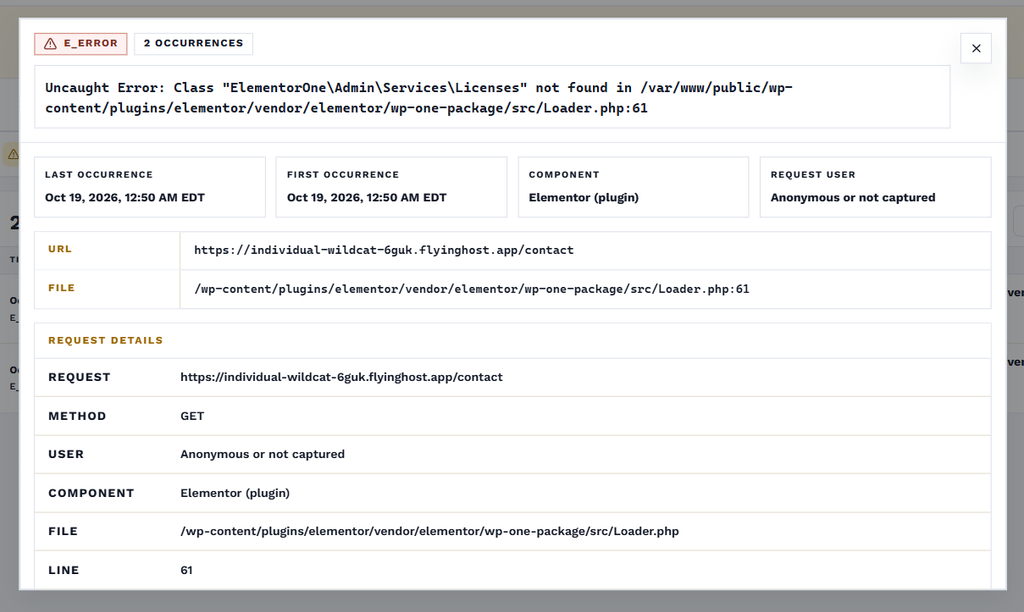
To review errors, open your website in CortexWP and go to Monitor → PHP Errors. This guide walks through reading an error entry, checking when it started, and using CortexWP AI when the error points to a plugin or theme conflict.
What CortexWP records about WordPress PHP errors
A PHP error message often contains three important clues: the type of failure, the file where PHP encountered it, and the line number. A stack trace adds the sequence of function calls that led to the failure. These clues are useful even when the file named in the error isn’t the component ultimately responsible for the problem.
Consider a missing PHP class inside a plugin. The error might appear in a loader file, but the real reason could be an incomplete plugin update or a dependency mismatch. Reading only the first line can send you toward the wrong fix. The stack trace, timestamps and context let you narrow down the likely cause before making a change.
Open PHP Errors in the CortexWP dashboard
Open CortexWP, choose Sites, and select the affected WordPress website. In the site navigation, go to Monitor → PHP Errors. CortexWP captures WordPress fatal errors as they occur on connected sites; there’s no separate schedule to configure for this feature.
Open an error entry to review its details. The error view can show the message, error type, occurrence count, first and last occurrence timestamps, suspected component, affected request URL and PHP file path. Where captured, the additional context includes a stack trace and request details such as the HTTP method and associated user information.
How to read an error entry
Imagine the error says that a PHP class cannot be found inside a page-builder plugin. First, read the error message to identify the missing class. Next, examine the file and line number to understand where the failure was raised. Then review first occurrence and last occurrence: did it begin immediately after updating the plugin, or has it been happening for days?
The occurrence count helps distinguish a single failed request from an issue affecting visitors repeatedly. The request URL tells you which page or action triggered the error. A failure on `/checkout` deserves a different response than a failure on a rarely used admin screen, even if both need investigating.
Investigate and resolve a PHP error using CortexWP
Avoid editing a plugin file based on a guess. First check the affected plugin or theme version and whether an update or rollback is appropriate. If the error started just after a change, open Updates Log to see what was updated and when. When a previous component version is available for restoration, you can review the appropriate rollback option.
If the site is still accessible, capture the error details before changing anything. For production sites, a backup and a reproducible test are sensible precautions. The manual WordPress update guide explains how CortexWP records component updates and visual test results.
Let CortexWP AI investigate the underlying cause
An error log tells you where to start, not necessarily what to change. The CortexWP AI agent can inspect the connected site’s plugin, theme, file and runtime context alongside monitoring information. You can ask it to explain a captured error, identify the relevant code path and propose a fix based on the actual WordPress installation.
Start with read-only access if you only want an explanation. For changes, use read/write access and review the proposed action before approving it. The guide to AI-assisted WordPress troubleshooting goes through that process in more detail.
Keep CortexWP PHP monitoring on between incidents
Not every PHP error takes the whole website offline. A broken admin request, scheduled task or specific page may fail while the homepage continues to load. That’s why uptime monitoring and PHP error monitoring complement each other: uptime checks whether the public site is reachable; PHP error logs explain failures occurring inside WordPress.
When the next WordPress PHP error appears, you can start from the exact message, affected file and occurrence history in CortexWP instead of randomly disabling plugins. Cross-check the Updates Log and, when appropriate, use CortexWP AI to investigate a proposed fix before approving any changes.