Blog
How to Update WordPress Plugins and Themes with CortexWP
Sometimes a WordPress plugin needs an update now, not during the next scheduled maintenance window. You can apply individual plugin, theme and core updates from the Updates area of a connected site in CortexWP, then review the safeguards and results without jumping between wp-admin screens.
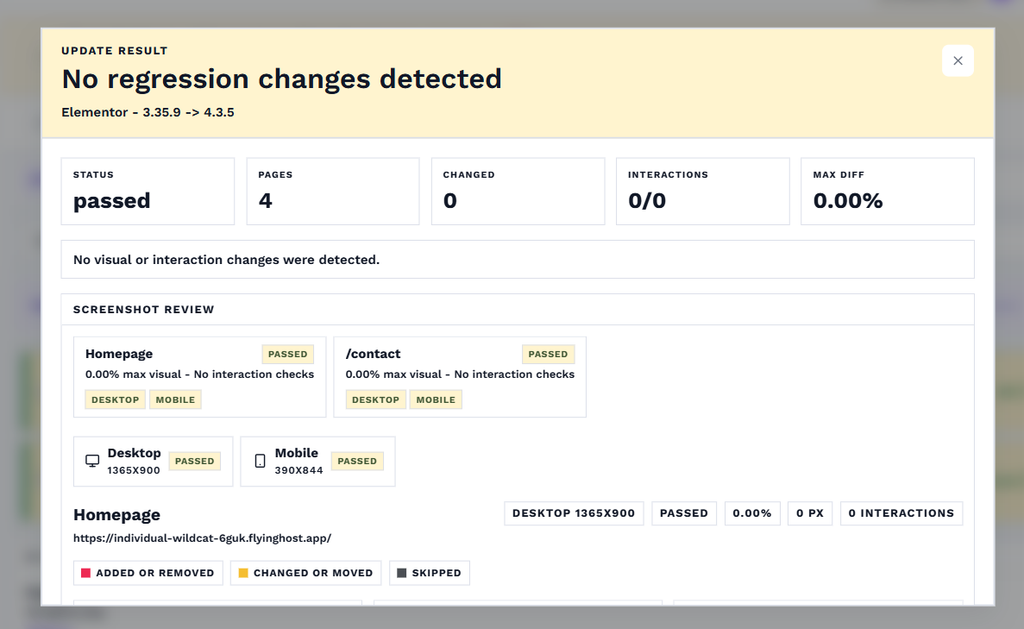
This guide shows where to find updates in CortexWP, how component backups and visual comparisons fit into an on-demand update, and how to review an update or restore a previous component version when something goes wrong. For scheduled updates, see CortexWP AutoPilot.
Open WordPress plugin and theme updates in CortexWP
Open CortexWP, choose Sites and select your WordPress website. From the site navigation, go to Updates and open the relevant Core, Plugins or Themes section. Review the available updates and select the component you want to update.
This separation is especially helpful when you want to patch a vulnerable plugin without changing unrelated themes or the WordPress core version on the same day.
How CortexWP applies an on-demand update
An update started from Updates runs through the safer component-update process used by AutoPilot. CortexWP backs up the individual plugin or theme, captures the configured pages before the update, applies the update and compares the pages afterward through visual regression checks.
There is one important difference from the scheduled AutoPilot process: an individual update from the Updates tab does not create the initial full-site backup. Don’t confuse the component backup with a complete backup of your WordPress database, uploads and site files. If you need a full recovery point before an especially risky change, review CortexWP backups first.
Why visual checks matter after a successful update
A WordPress update can return a successful result while quietly changing the layout of a form, menu or product page. That is not necessarily a PHP fatal error, so you may not discover it by reviewing error logs. CortexWP’s visual regression testing compares configured pages before and after updates and marks changes that exceed their accepted thresholds.
Configure the relevant URLs in Updates → Visual Regression before starting the update. The visual regression setup guide covers how to add default and component-specific pages, adjust thresholds and exclude dynamic content.
Check the CortexWP Updates Log after a change
After running an update, open Updates Log in the site navigation. This is the record of what was updated and how the operation finished. Review the individual result, the component involved and any failed tests rather than assuming the update is safe because the new version appears installed.
The log is also useful days later when a bug report arrives. You can compare the time the problem began with the site’s change history and identify a recent plugin or theme update worth investigating.
Restore a plugin or theme backup in CortexWP
If an update breaks a feature, CortexWP provides the option to restore an older version of the affected plugin or theme when its backup is available. You can manage restoration through the update history and component actions. Before restoring, check whether the difference was actually caused by that component and whether the current version includes a security fix you would be undoing.
Component backups are retained for 20 days. If the issue concerns the database or a broader site change, a component restore may not be enough. The backup and restore guide explains the full-site backup requirements and limitations.
Decide between an immediate update and AutoPilot
Use the Updates tab when you need to make a deliberate change now or address an urgent patch. Use AutoPilot for scheduled maintenance that checks and updates multiple components over time. You don’t have to choose one approach for every situation; a critical security fix can be applied today while lower-risk updates stay on the normal schedule.
For details on exclusions, maintenance windows and history, see how to automate WordPress updates safely.
Your CortexWP checklist after an update
For a security patch or urgent bug fix, the CortexWP Updates area gives you a focused way to update one component and check what followed. Review the version change, the visual test and the Updates Log, then test the actual page or transaction that matters to your visitors.