Blog
How to Automate WordPress Updates with CortexWP AutoPilot
Keeping plugins and themes updated shouldn’t mean risking your live checkout or contact forms every time an update appears. CortexWP AutoPilot handles scheduled WordPress updates with backup and visual-check steps, then records what happened so you can review the result.
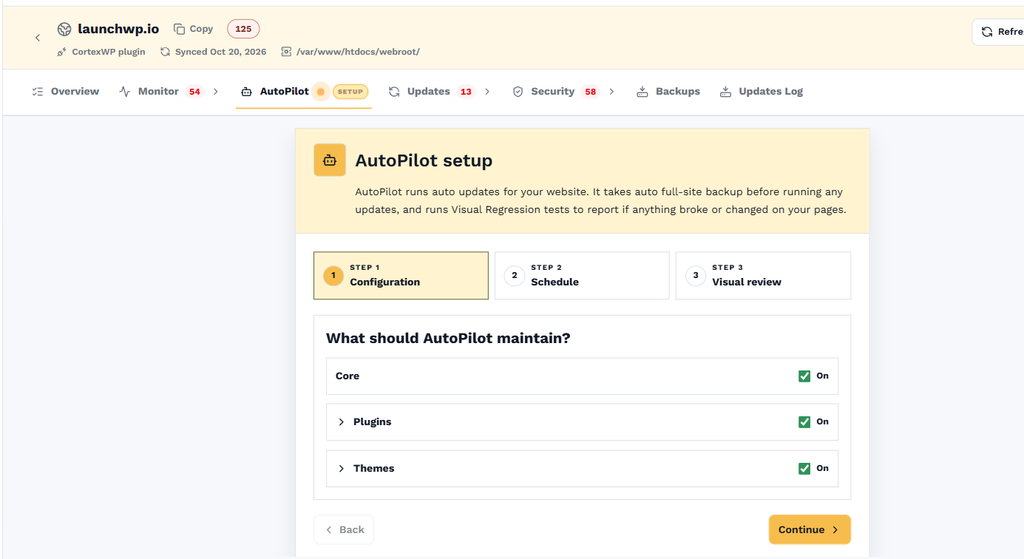
To configure it, open Sites, choose the website and select AutoPilot. You’ll find the update schedule, component settings and run history there. This guide explains what AutoPilot does during a run, how to configure the days and timing, and what to check if a visual comparison shows an unexpected change.
How CortexWP AutoPilot runs WordPress updates
An AutoPilot run starts by creating a full-site backup when full-site backups are available for the connected site. CortexWP then processes pending plugin and theme updates individually rather than applying everything in one undifferentiated batch.
Before updating an individual plugin or theme, it creates a backup of that component and captures screenshots of configured pages. It applies the update, captures the pages again and compares the results. If the detected change exceeds your chosen threshold or an interaction check identifies a problem, the visual regression test can fail and CortexWP alerts you to review the change.
This sequence matters because you can see which particular update introduced a problem. A failed visual check does not automatically mean the whole website has been restored; the reported result and available backup let you decide whether rollback is necessary.
Enable and configure AutoPilot in CortexWP
In the CortexWP dashboard, open Sites, select your WordPress website and choose AutoPilot in the site navigation. A newly connected site needs its AutoPilot settings configured before routine automatic runs begin.
Under Settings, choose which components AutoPilot should maintain: WordPress core, plugins and themes. You can exclude specific plugins or themes when an update requires manual testing or coordination with a developer. For example, an agency might temporarily exclude a custom booking integration during an important sales campaign.
Set the AutoPilot schedule for your website
On the same AutoPilot settings page, the When should AutoPilot run? section lets you pick the days of the week and the time window in which updates may run. Schedule changes for a period when the site is less busy and when someone can review alerts if something needs attention.
You can also disable AutoPilot through its settings controls or start an immediate run using Run now. A manual run is useful after a critical plugin fix becomes available and you don’t want to wait until the next scheduled maintenance window.
Understand how WordPress core updates are handled
Core updates have their own considerations. CortexWP’s default setup automatically applies the latest WordPress security release without waiting for the next AutoPilot schedule. Other core updates, including major and minor releases in the described workflow, run through AutoPilot’s scheduled process so the site can be checked for problems afterward.
Review your settings and update history when planning a significant core-version change. A WordPress core upgrade can affect plugins and themes even when the upgrade itself succeeds.
Configure visual regression checks before trusting automation
Open Updates → Visual Regression to choose the pages CortexWP will check around updates. You can configure up to 10 URLs, use default pages that run for every update, or assign additional pages to particular components. Set an acceptable change percentage for each page and exclude dynamic elements where appropriate.
For a WooCommerce site, you might include the product, cart and checkout experiences; for a business site, a contact form may be more important. CortexWP can also check interactive UI such as menus, FAQs and sliding elements during visual regression testing. The WordPress visual regression guide explains the settings and their tradeoffs.
Review completed AutoPilot runs in CortexWP
Inside AutoPilot, open the History tab. It records runs, which components were updated, the results of each step and any failures that need review. If an update failed a visual test, compare its results with the relevant page and decide whether the difference was expected.
The wider Updates Log also keeps a record of individual update actions. See the manual and on-demand updates guide for more on reviewing results and restoring older component versions.
Important: full-site backups require SFTP
Full-site backups require the WordPress site to be connected using SFTP. A connection that uses only the CortexWP plugin cannot create those full-site backups, so the full-site backup stage of AutoPilot is skipped for that connection. Individual plugin and theme backups are a separate part of the update process.
Check the connection method before assuming an AutoPilot run includes a full restore point. The WordPress backup and restore guide explains the difference and the 20-day backup retention period.
Use CortexWP AutoPilot without losing control
AutoPilot’s purpose is to make frequent updates manageable, not to hide the results. Configure the schedule, choose important pages for visual testing, and review the run history when a check fails. CortexWP keeps the update record and restore options together so you can decide whether to keep or roll back a change.