Blog
How to Back Up and Restore WordPress with CortexWP
If you’re managing updates or troubleshooting a live WordPress site, backups have to be usable, not just scheduled. CortexWP Backups & Restore provides full-site backup and recovery for websites connected with the required SFTP access, plus component backups used in update workflows.
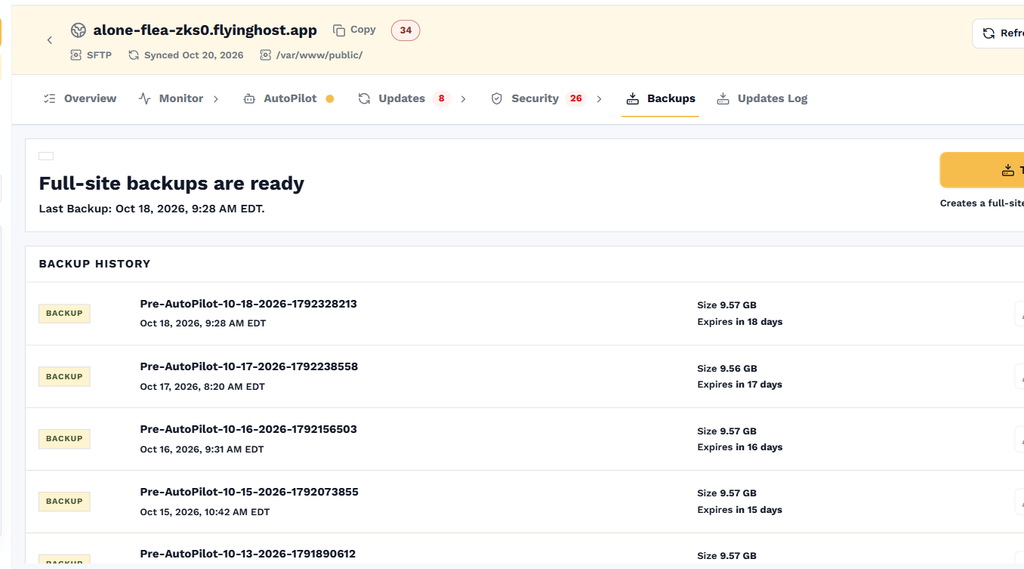
In CortexWP, choose Sites, select the website and open Backups. Before following this guide, check the site’s connection method: full-site backups and restores require SFTP, so a plugin-only connection is not sufficient. Here’s how to review available backups, create one and choose the right restore option.
Connect WordPress to CortexWP with SFTP for full backups
A site connected to CortexWP only through the WordPress plugin cannot create full-site backups. Full-site backup and restore functionality requires a connection using SFTP. This also affects AutoPilot: when full-site backup is unavailable, the initial full-site backup stage is skipped during automatic updates.
Before configuring backups, confirm that your connected website uses the required SFTP access and that the connection works. If you’re using only the plugin connection, don’t interpret a successful plugin or theme update as evidence that a complete site recovery point was created.
Find your site backups in CortexWP
Sign in to CortexWP, choose Sites, select your WordPress website and open Backups in the site navigation. This is where you can create a full-site backup, review available backups and choose an existing backup to restore from.
A full-site backup is intended to preserve the files and database needed for site recovery. By contrast, a backup of an individual plugin or theme is a narrower safety net created around that component’s update. The two shouldn’t be treated as interchangeable.
Create a WordPress full-site backup in CortexWP
Once SFTP is configured for the site, use the create-backup action in Backups to start a full-site backup. Review the resulting backup entry and its status so you know the operation completed before making a risky change. For an important deployment, create a backup shortly before the change rather than assuming an older recovery point reflects the latest content and settings.
CortexWP also lets you rename backups, which makes the list easier to understand later. A descriptive name such as “Before checkout plugin change” is far more helpful than a collection of similar timestamps when several people maintain a site.
Understand AutoPilot and component backups
During a scheduled AutoPilot run, CortexWP first creates a full-site backup if the SFTP connection supports it. It then backs up each individual plugin or theme before applying that component’s update. Those backups are useful if a specific update changes a page or breaks functionality and you want to restore the earlier version.
On-demand updates from Updates → Plugins or Updates → Themes still create the individual component backup, but do not begin with the full-site backup stage. Review the AutoPilot guide and the on-demand update guide before relying on one type of backup for another.
Restore a website or plugin backup with CortexWP
To recover using an available full-site backup, open Backups and select the restore action for the backup you want to use. Review the backup’s date and purpose carefully: restoring older content can undo legitimate changes made after it was created. Where the problem is limited to one plugin or theme, check the individual update history and component restore option instead.
Before restoring a busy site, consider recent orders, form submissions and content changes. A full-site restore may affect database records added after the backup. Coordinate a maintenance window when necessary, and verify the public site and important user journeys after recovery.
Check CortexWP backup retention and availability
CortexWP retains full-site backups and individual plugin or theme backups for 20 days. After that, they are automatically deleted. This is important for both maintenance planning and compliance: if you need monthly or longer-term archives, you’ll need a separate retention approach rather than assuming CortexWP keeps every old backup indefinitely.
If you’re investigating a problem that started weeks ago, inspect the available backup dates early. Waiting too long may mean the component version or restore point you wanted is no longer retained.
Make CortexWP backups part of your update routine
A CortexWP backup is most valuable when you know exactly what it covers and how to restore it. Confirm SFTP access, review completed backup records, and distinguish full-site recovery from a single plugin or theme rollback. Read the CortexWP Backups & Restore feature page for the full workflow.