Blog
How to Set Up WordPress Visual Regression Testing with CortexWP
A WordPress update can finish successfully and still leave a product page or navigation menu looking wrong. CortexWP visual regression testing compares selected pages before and after changes so you can spot unexpected differences instead of trusting the update success message alone.
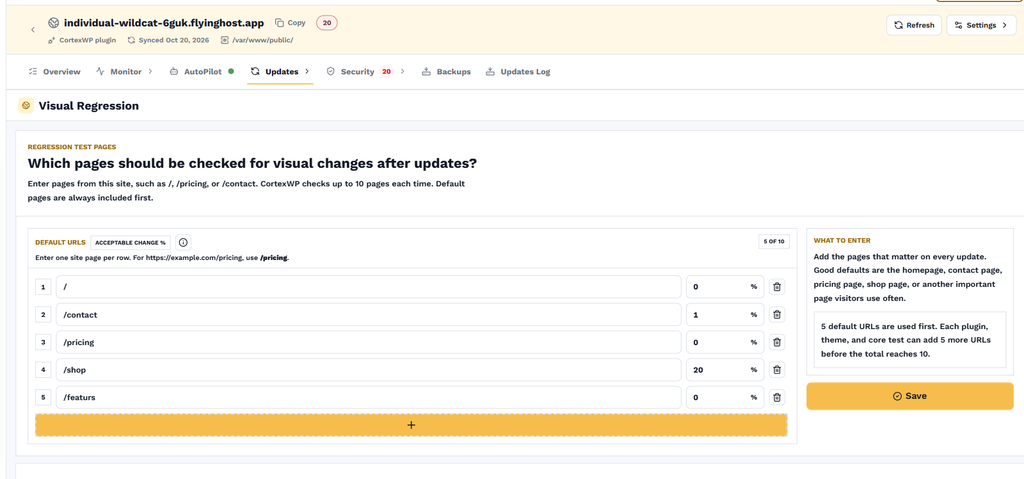
You configure the pages and visual testing rules for your connected site in CortexWP. This walkthrough shows how to choose up to 10 URLs, set acceptable change thresholds, exclude elements that change naturally, and inspect results after a plugin, theme or core update.
How CortexWP compares WordPress pages after updates
A visual regression test captures how a page looks before a change, captures it again afterward, and compares the results. Differences can point to altered spacing, missing page sections, changed typography or other layout problems. The goal isn’t to prevent every visual difference: some updates are supposed to change how a site looks. The goal is to identify unexpected changes while you still know which update caused them.
CortexWP also checks interactive page elements such as toggleable menus, FAQ sections and sliding elements as part of the described testing process. This matters because a page can look correct in a static screenshot but still behave incorrectly when visitors interact with it.
Open visual regression settings in CortexWP
In CortexWP, go to Sites, select your WordPress website, then open Updates → Visual Regression. This section controls the pages and elements used for visual checks when components are updated or restored. The screen includes the regression test URLs and an Excluded Web Elements section.
You can configure up to 10 URLs for tests. CortexWP uses default pages first, and you can allocate the remaining slots to pages associated with particular plugins, themes or core changes. The dashboard explains how many URL slots are being used.
Choose the WordPress pages CortexWP should compare
Default URLs are checked when updates run, regardless of which plugin or theme is being updated. Start with pages that represent the site’s most important visitor journeys: typically the homepage, a contact or lead form, and any other critical public-facing page.
For example, you could add `/` as a default page so every update gets checked against your homepage. Use the URL fields on the Visual Regression page to enter the paths you want tested. Keep the list focused: ten important pages are more useful than ten arbitrary pages that visitors rarely use.
Configure CortexWP page checks for specific updates
Not every page needs to be tested for every component. CortexWP supports extra URLs associated with an individual plugin, theme or WordPress core. If your forms plugin is being updated, you may want to test `/contact` even if that isn’t a default page. If a specific checkout integration is updated, you’d focus on the page where that integration is used.
For example, configure `/` as a default URL and assign `/contact` to the forms plugin. The homepage is checked for every update, while the contact page is checked when that selected plugin is updated or restored. This approach uses the ten-page allowance more efficiently and keeps tests relevant to the change.
Set an acceptable visual change threshold
Each configured page has an acceptable change percentage setting. A tighter threshold flags smaller differences, while a more permissive threshold tolerates larger visual changes. There isn’t one correct percentage for every site. A static services page may need a strict threshold; a page with rotating banners, personalized content or animated sections may produce more harmless differences.
Start with the pages you can review and adjust thresholds based on the differences you consider acceptable. A failed threshold test is a signal to inspect the result, not automatic proof that the website is broken.
Exclude dynamic elements from comparisons
Scroll to Excluded Web Elements on the Visual Regression settings page. Here, you can enter CSS selectors for elements that change independently of plugin updates, such as an animated carousel or a live counter. CortexWP accepts a CSS class or ID, and you can separate selectors with commas or new lines.
For example, to exclude a rotating promotional banner with a class and a countdown timer with an ID, you might enter:
.promo-slider,
#countdown-timer
Only exclude elements you intentionally don’t want compared. Excluding a checkout summary, product gallery or site navigation could hide a real regression.
Review CortexWP visual regression results
Run an update using the Updates tab or through AutoPilot. CortexWP records the comparison result with the update history so you can see which change introduced an unexpected difference. Review the before, after and comparison views, and decide whether to keep the change or restore the earlier component version.
Visual regression screenshots are kept for 7 days, then automatically deleted. Review failures promptly if you want to inspect the visual evidence. The update workflow is described in more detail in the AutoPilot guide and manual updates guide.
Choose meaningful pages for CortexWP visual checks
When configuring CortexWP visual tests, prioritize the pages customers actually use, such as checkout, contact and product templates. Compare the flagged screenshots before deciding to roll back. A visual difference is a reason to inspect the page, not automatic proof that the update failed.