Blog
How to Diagnose and Fix WordPress Errors with CortexWP AI
If you ask a generic chatbot why your WordPress checkout is broken, it can only work with the details you provide. CortexWP AI works with context from your connected WordPress website, including available files, plugins, logs and maintenance data, so you can investigate the actual problem instead of relying on guesses.
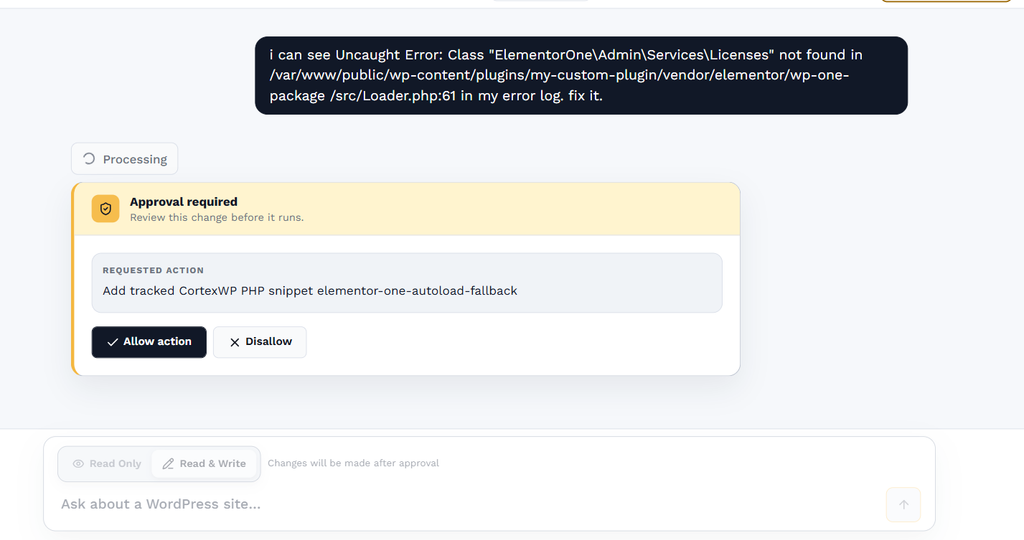
Start in CortexWP, connect the website and open New chat. You can begin with read-only access to investigate, then review and approve a proposed fix when you want the agent to make changes. This tutorial uses a broken page and a plugin error to show how the workflow fits together.
How CortexWP AI investigates a connected WordPress site
A connected agent can look at actual plugins, themes, code files, logs, configuration and database context rather than relying only on a description in chat. CortexWP can also use information from its monitoring tools, including uptime history, captured PHP errors and update activity. That’s useful because the reason a page is broken may be connected to a recent plugin update, a fatal error or the site’s configuration.
You can ask about both troubleshooting and routine maintenance. For example, “Which plugin was updated most recently, and did its visual checks pass?” is a factual question about your website’s recorded activity, not a request for generic WordPress advice.
Connect your site and start a CortexWP AI chat
Open CortexWP, connect your WordPress website using the connection method appropriate to your setup, and use New chat when you want to ask the AI to investigate a problem. CortexWP supports connections through its WordPress plugin or server access methods such as SFTP/SSH for supported operations.
You can also review the site’s monitoring and maintenance tools under Sites before asking a question. If the issue involves a fatal error, open Monitor → PHP Errors to confirm the captured message. If it began after a plugin update, check Updates Log to see when and what changed.
Use CortexWP read-only mode to diagnose an issue
CortexWP offers read-only and read/write access modes. Use read-only when you want the agent to inspect and explain a problem without changing the production site. It can review available files, logs, plugins, themes, settings and database context while preventing writes.
This is a sensible starting point when the root cause isn’t yet clear. Ask a focused question such as “What caused the latest Elementor fatal error on my contact page?” or “Did downtime start after the most recent update?” Giving the agent a clear symptom or timestamp helps it look for relevant evidence.
Review and approve CortexWP AI changes
When you want CortexWP to perform a fix, use read/write access and review the proposed action. The AI asks for approval before applying changes. This lets you inspect what it plans to change instead of accepting an opaque suggestion that immediately edits production code.
For an important site, verify that an appropriate backup exists and understand the expected impact of the change. The agent can be helpful with plugin conflicts, code troubleshooting, configuration work and other supported WordPress tasks, but you remain responsible for deciding which proposed changes are appropriate.
Ask CortexWP AI about monitoring and maintenance
The AI isn’t limited to programming. Because CortexWP has the site’s monitoring information, you can ask for a summary of recent downtime, whether an SSL certificate is nearing expiry, which updates failed, or what a PHP error means. That reduces the need to open several separate dashboards just to assemble a timeline.
The uptime monitoring guide explains the availability history, and the PHP error monitoring guide shows where to find stack traces and affected files. The Site Health page also has an Ask AI action for investigating its findings.
Example: troubleshoot a broken WordPress page with CortexWP AI
Suppose a contact page starts returning an error after a plugin update. First, check Monitor → PHP Errors for an error on that URL. Then review Updates Log for changes around the first recorded occurrence. Ask CortexWP AI to compare the evidence and explain the most likely cause. If it identifies a fix, review the specific action and approve it only when you’re comfortable with the change.
If the issue is a visual layout regression rather than a PHP failure, examine Visual Regression results instead. Different problems need different evidence, and a connected AI agent is most useful when it can work from those details.
Use CortexWP AI alongside backups, updates and monitoring
CortexWP AI is most useful when you give it a specific WordPress symptom and let it inspect the connected site’s evidence. Start with a read-only diagnosis, review its proposed action and approve changes only when you’re comfortable with them. For more detail about its capabilities, see the CortexWP AI agent feature.