Blog
How to Monitor WordPress Uptime with CortexWP
Want to know when a WordPress website goes down before a customer tells you? CortexWP uptime monitoring checks your site from outside its server, keeps an availability history, and shows response times and SSL certificate expiry in the same dashboard.
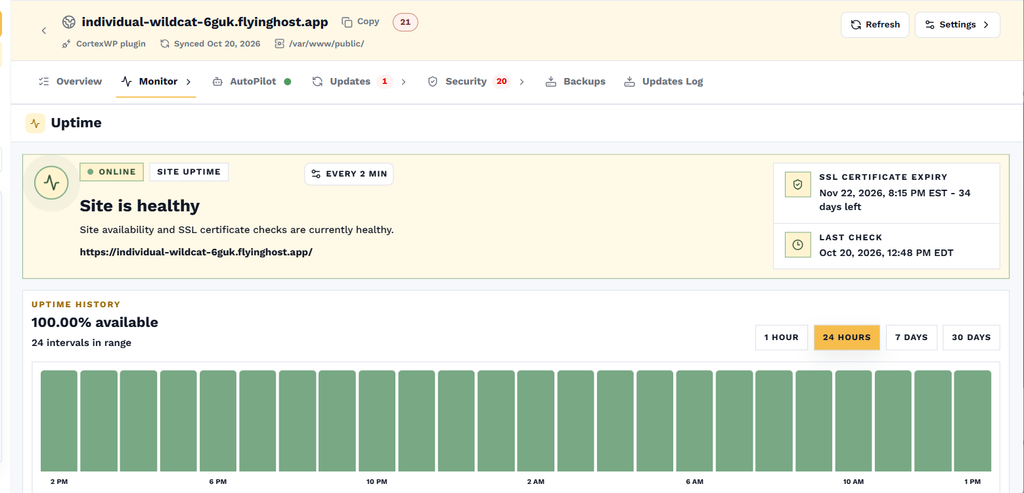
You can see the current status from a site’s Overview page, then open Monitor → Uptime for the full history and check settings. Here’s how to set up the monitoring interval, read the results and follow up when CortexWP reports downtime.
What CortexWP monitors on your WordPress site
An uptime monitor makes requests to your public website at regular intervals. It can notice when the site becomes unreachable even if the WordPress admin and the plugin running inside WordPress are unavailable. That’s the reason an external check matters: a tool running only on the broken server may be unable to tell you that the server is broken.
CortexWP also shows response time, the result of the latest check, and the remaining validity of the SSL certificate. A site can be online and still need attention if responses are unusually slow or its certificate is close to expiring. Uptime, speed and SSL are related signals, but they mean different things; a healthy SSL certificate doesn’t prove the whole website is functioning correctly.
Open CortexWP Uptime from your site dashboard
Sign in to CortexWP, open Sites, and select the WordPress website you want to review. The Overview tab shows an uptime summary with the last 24 hours, the current status, response time, latest check and SSL time remaining. For the detailed view, open Monitor → Uptime.
On the Uptime page, you’ll see whether the site is currently online, when it was last checked, and its SSL certificate expiry date. The uptime history graph supports 1 hour, 24 hours, 7 days, and 30 days. Switch between these ranges to see whether a problem was a short interruption or a repeating pattern.
Choose how frequently CortexWP checks your site
The uptime monitor supports checks every 2, 5, 10, or 30 minutes, or once per hour. On the Uptime page, use the check-interval control (shown as something like Every 5 min) to select the schedule that makes sense for the site.
For a busy store or customer-facing service, a shorter interval gives the monitor more chances to notice downtime quickly. A lower-frequency check may be sufficient for a small informational site. The interval affects how often CortexWP checks the site; it isn’t a guarantee that an outage beginning between checks will be detected immediately.
How CortexWP handles website downtime
When CortexWP detects that your website is unreachable, it sends an alert so you can investigate rather than waiting for a visitor’s complaint. You can also review the downtime period against the uptime graph and the last successful checks. Look at whether the issue was isolated or coincided with a deployment, server maintenance, DNS change or WordPress update.
CortexWP also pauses AutoPilot updates, broken-link scans and backups while a site is down. This prevents those scheduled jobs from attempting to run against a site that isn’t reachable. Once the website is available again, review the history and any skipped work instead of assuming it ran during the outage.
How to investigate a WordPress downtime alert
Start by loading the public website yourself. If it fails, check whether the hosting provider has an incident and whether DNS resolves correctly. If the site loads now but was unavailable earlier, use the timestamps in CortexWP to compare the outage with your server logs or change history. Check the Monitor → PHP Errors page for fatal errors and the Updates Log for a change that may have preceded the incident.
If an update caused a page to break, AutoPilot’s safer update workflow and the guide to safe WordPress updates explain the available history and rollback options. For recurring slowdowns, a healthy uptime percentage alone won’t explain the root cause; look at PHP errors, resource usage and response times together.
Don’t forget SSL expiry monitoring
An expired SSL certificate can stop people from safely opening a website even when WordPress itself is running. In the Uptime page’s status area, CortexWP displays the certificate expiry date and days remaining. That gives you a chance to renew or repair the certificate before visitors start seeing browser warnings.
The WordPress site health guide explains how to combine this information with security checks and updates. You can also explore the uptime monitoring feature if you’re setting up monitoring for more sites.
Make CortexWP uptime checks part of site maintenance
For an agency or site owner, the value of CortexWP uptime monitoring is having a usable record instead of a vague alert. Your latest check, outage history, response time and SSL status are visible alongside PHP errors and update activity. Start with CortexWP uptime monitoring, then use those records to investigate each incident.