Blog
How to Monitor WordPress Logins with CortexWP
If someone repeatedly tries to sign in to a WordPress site, you need a record of those attempts, not just a guess based on server traffic. CortexWP Login Monitor records successful and failed WordPress logins and brings the activity into the same site dashboard as your security checks.
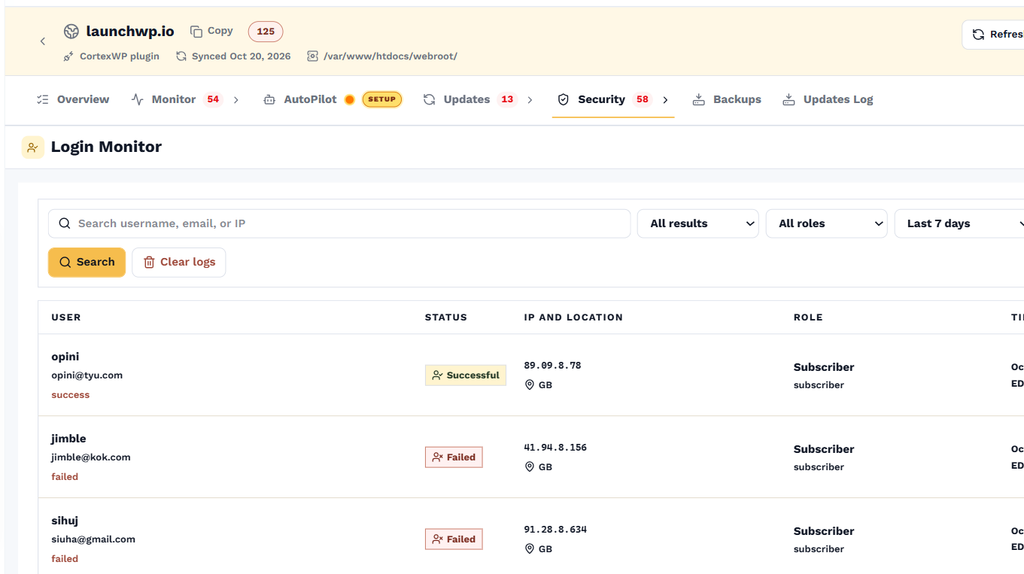
To see the activity, open the website in CortexWP and go to Security → Login Monitor. The entries give you timestamps, account details and recorded IP addresses so you can investigate unusual patterns. Here’s what to look for and what to do if a login attempt seems suspicious.
What CortexWP records in WordPress login logs
A login log answers basic questions that the WordPress dashboard doesn’t put in one convenient place: which user attempted to sign in, when the event happened, whether it succeeded, and what IP address was recorded. CortexWP logs activity across user roles, including both successful and failed attempts.
This is useful for agencies that support client administrators, membership sites with frequent logins, and WooCommerce stores where account activity is common. A long list of login events isn’t automatically suspicious; the patterns within it are what matter.
Open CortexWP Login Monitor
Open CortexWP, choose Sites, select the WordPress site and go to Security → Login Monitor. Here you can review recent login events and examine the recorded activity.
Use the available filters for user roles and timestamps to focus on the events you’re investigating. On a membership site, for example, filtering for administrator accounts can make it easier to review privileged access without paging through routine member logins.
Interpret failed WordPress logins in CortexWP
Several failed logins from a single user might simply mean a forgotten password. A high volume of failures across many usernames or repeated attempts against the administrator account may be a sign of password guessing. Repeated failures that happen just before a successful login deserve closer examination.
The IP address is another clue, but it isn’t conclusive proof of identity. Users may share networks, use VPNs or connect through corporate proxies. Look at the timing, usernames, roles and your site’s usual traffic before deciding whether an event is malicious.
Investigate suspicious WordPress logins with CortexWP
Start by checking whether the affected account owner recognizes the login. If an account may be compromised, reset credentials, review the user’s permissions and consider enabling multi-factor authentication using the security controls available for your setup. If bots are repeatedly targeting the login page, rate limiting and protections at your web application firewall may help reduce unwanted traffic.
Avoid blocking an entire IP range based on one event, especially on community or membership sites where legitimate users share networks. It’s more useful to identify a pattern and then choose a response that fits the evidence. The WordPress site health and hardening guide covers the related security settings available in CortexWP.
Connect login activity with vulnerability and site health checks
Login monitoring doesn’t replace patching vulnerable plugins or securing administrator accounts. Review Security → Vulnerabilities for known issues in installed components and Security → Site Health for configuration warnings. A vulnerable plugin and a spike in suspicious logins are different problems, but both belong in a sensible security review.
The WordPress vulnerability guide explains the scheduled scans and patch information. For an overview of the feature, see CortexWP Login Monitor.
Review WordPress login activity without unnecessary noise
With CortexWP Login Monitor, a suspicious sign-in becomes something you can investigate using recorded events, not assumptions. Focus on privileged accounts, repeated failures and incidents that line up with other security findings. For broader checks, use the CortexWP security tools alongside the login history.