Blog
How to Scan WordPress Vulnerabilities with CortexWP
A pending WordPress plugin update doesn’t tell you whether the installed version has a known security vulnerability. CortexWP vulnerability monitoring checks the WordPress core, plugins and themes in your connected site and shows matching advisories with available patch information.
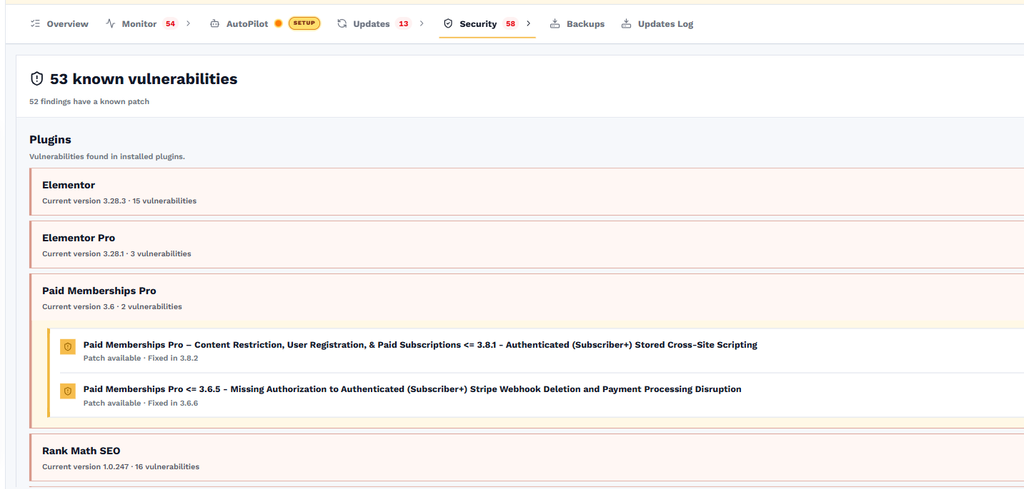
Open Sites, choose your website and select Security → Vulnerabilities. You can see which components are affected, whether a patch is available and what to review before updating. Here’s how to use the report and avoid treating every advisory as proof that your website has been compromised.
What CortexWP scans for known WordPress vulnerabilities
CortexWP reviews the versions of WordPress core, plugins and themes that your site is using and compares them with known security advisories. A finding can identify the affected component and the version range involved. Where a fixed version is known, the dashboard can show which release contains the patch.
This is known-vulnerability monitoring, not proof that the site is infected or that every newly discovered issue has already been cataloged. A clean result means the scan did not identify a matching known advisory for the installed versions at that time. It is still important to maintain backups, protect accounts and review site health.
Open CortexWP Vulnerabilities for your website
Sign in to CortexWP, open Sites, select a site and navigate to Security → Vulnerabilities. The page shows the number of known vulnerabilities and groups findings by the affected component, such as an installed plugin. You can expand entries to review the vulnerability description and patch status.
For example, a page-builder plugin may have several different advisories affecting different versions. Review each finding rather than assuming one displayed count means one exploitable issue on every page of your site. The fixed-version information helps you determine whether an update is available for the version you have installed.
How often CortexWP checks WordPress vulnerabilities
CortexWP runs vulnerability checks every six hours. When it detects a vulnerability, it alerts you and includes patch information when a fixed version is available. That schedule helps catch newly reported issues even if no one has signed into the WordPress admin dashboard that day.
The scan is based on reported vulnerability data. New advisories can take time to be published and matched against product versions, so vulnerability monitoring is one part of your security process rather than a guarantee that every possible weakness is known.
Prioritize vulnerability fixes from the CortexWP report
Start with findings that affect your installed and active components and for which a security patch is available. Review the affected version, the fix version and whether the plugin or theme is essential to the website. If a patched version is available, plan the update promptly and test important site functionality afterward.
CortexWP’s Updates area lets you update individual plugins and themes, with component backups and visual checks. The safe WordPress updates guide explains how to review the result and restore an earlier component version when appropriate. If no patch exists yet, assess exposure, look for vendor guidance and consider temporarily disabling the affected functionality when it is safe to do so.
Ignore findings only when you understand the reason
The Vulnerabilities page allows you to ignore a specific vulnerability if you’ve verified that it doesn’t apply to your situation or is a known exception. Ignoring a finding removes unwanted repeat attention, but it doesn’t patch the underlying code or eliminate an exploitable issue.
Record why a finding was ignored and revisit the decision if the plugin version or website configuration changes. This is particularly important when several people share responsibility for maintaining client sites.
Connect vulnerability results with other CortexWP checks
Known vulnerabilities are only part of WordPress security. Check Security → Site Health for configuration issues and Security → Login Monitor for suspicious account activity. The site health and hardening guide and login monitoring guide explain how to investigate those signals.
CortexWP turns a vulnerability report into a practical update decision: locate the affected plugin or theme, confirm whether a patch exists, use the available update controls, and verify the live site afterward. Keep in mind that vulnerability checks identify reported issues; a clean result isn’t a full malware scan or a security guarantee.