Blog
AI-Powered WordPress Speed Optimization – CortexWP & FlyingPress
Site speed matters. A faster WordPress site means lower bounce rates, more conversions, and better Core Web Vitals, which Google uses as part of its page experience signals. That is why so many WordPress users choose FlyingPress for caching and performance optimization.
CortexWP AI helps you get even more out of FlyingPress. It runs a PageSpeed test, checks your pages in a real browser on mobile and desktop, and finds what is slowing down your site, like a hero image that loads late, a render-blocking script, or a third-party script that hurts your LCP or INP. Then it fine-tunes FlyingPress for your site, tests each change, and keeps only the ones that work.
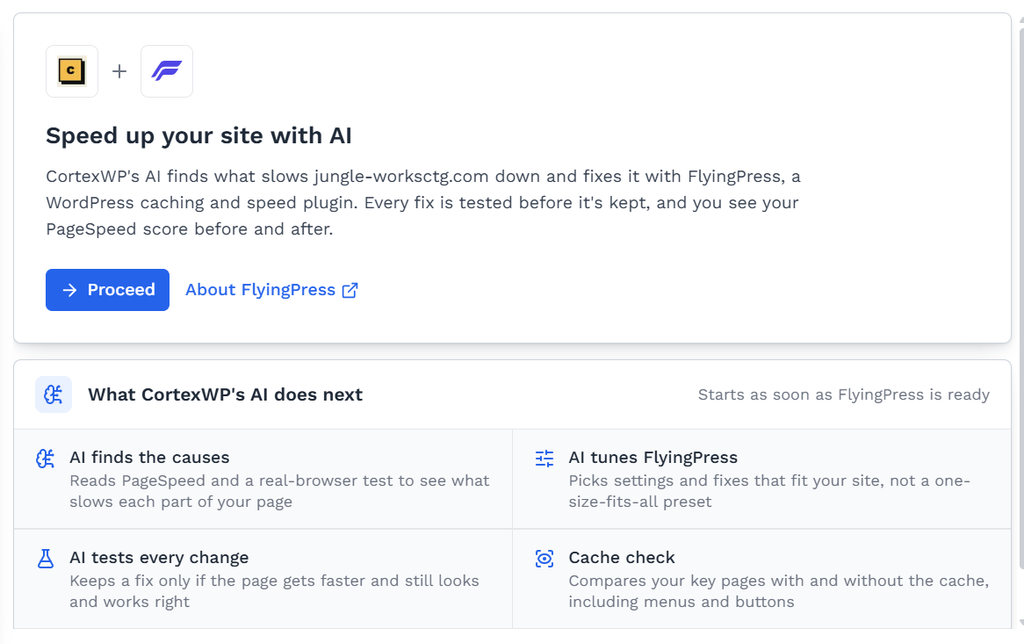
At the end, you get a simple before-and-after report showing your PageSpeed scores, what changed, and what is left to fix, such as slow server response time (TTFB) or a heavy page builder layout. Whether you manage one site or many client sites, it is an easy way to speed up WordPress with FlyingPress.
CortexWP’s AI-powered WordPress speed optimization uses FlyingPress to improve how your site loads, then checks the result in a real browser. It investigates what is slowing your website down, configures FlyingPress, tests targeted improvements, and compares the results on mobile and desktop. You get a report of what improved, what was undone, and what still needs your attention.
You can start the speed-up and close the page. CortexWP continues in the background and notifies you when it needs an answer or the run finishes. You choose how to handle images and database clean-up. A separate Cache check compares selected pages with and without FlyingPress optimization to help you spot changes to their appearance or behavior.
This guide covers the CortexWP AI speed optimization feature: getting started, how the AI chooses and tests changes, image optimization, cache checks, and reading your results.
How CortexWP AI and FlyingPress work together
FlyingPress handles WordPress caching and page optimization. CortexWP adds site-specific analysis, tests possible improvements, and explains the results. The AI uses evidence from your website to decide which supported changes are worth trying.
For example, a large image might load too late, a tracking script might keep the browser busy, or a page section might appear later than it should. CortexWP can investigate these different causes and test an appropriate change: load the main image earlier, delay a particular script, or show that section immediately.
You manage this work in three places: Speed up with AI for diagnosis and tested improvements, Images for image optimization, and Cache check for comparing the public pages you choose. The speed-up refreshes the site-wide cache near the end so pages use the updated settings.
Disclaimer: CortexWP is not affiliated with FlyingPress. CortexWP is not a part of FlyingPress, and FlyingPress is not a part of CortexWP. FlyingPress is an awesome performance optimization and caching plugin, and CortexWP simply works on top of it, combining FlyingPress with visual regression tests and real browser checks. When you use FlyingPress, you agree to the FlyingPress Terms of Use.
What you need before starting
- A WordPress website connected to CortexWP, with access working.
- FlyingPress installed with an active license. CortexWP guides you through installation, activation, or license activation if needed.
- An eligible CortexWP plan or free allowance with enough AI tokens. The dashboard checks this before starting and shows your options if more tokens are needed.
- A site ready for changes. If it is paused or other site work is blocking the speed-up, the button explains what must finish first.
Starting a speed-up replaces performance-related FlyingPress settings with CortexWP’s recommended settings. Review the confirmation before continuing. Your FlyingPress license and CDN settings stay the same. If you want a recovery point before changing your site, follow our guide to backing up and restoring WordPress with CortexWP.
How to start WordPress speed optimization in CortexWP
- Open CortexWP, go to Sites, and select your website.
- Under Performance, select Speed up with AI.
- If you see the introduction, click Proceed. CortexWP checks whether FlyingPress is ready.
- Complete the setup step shown. If FlyingPress is missing, install it through Plugins → Add New → Upload Plugin in WordPress and activate it. If it is installed but inactive, use Activate FlyingPress. If a license is needed, enter it and choose Activate license, or activate it in WordPress and click Check again.
- Click Speed up site, read the settings confirmation, then select Update and speed up.
- Answer any questions that appear. You can leave the page while CortexWP continues working.
The page shows the current task and progress. After the run, Run again starts a new speed-up. Start and manage the work from the Performance controls; you can also ask CortexWP’s chat assistant to explain the latest report.
How the AI finds what is slowing your WordPress site down
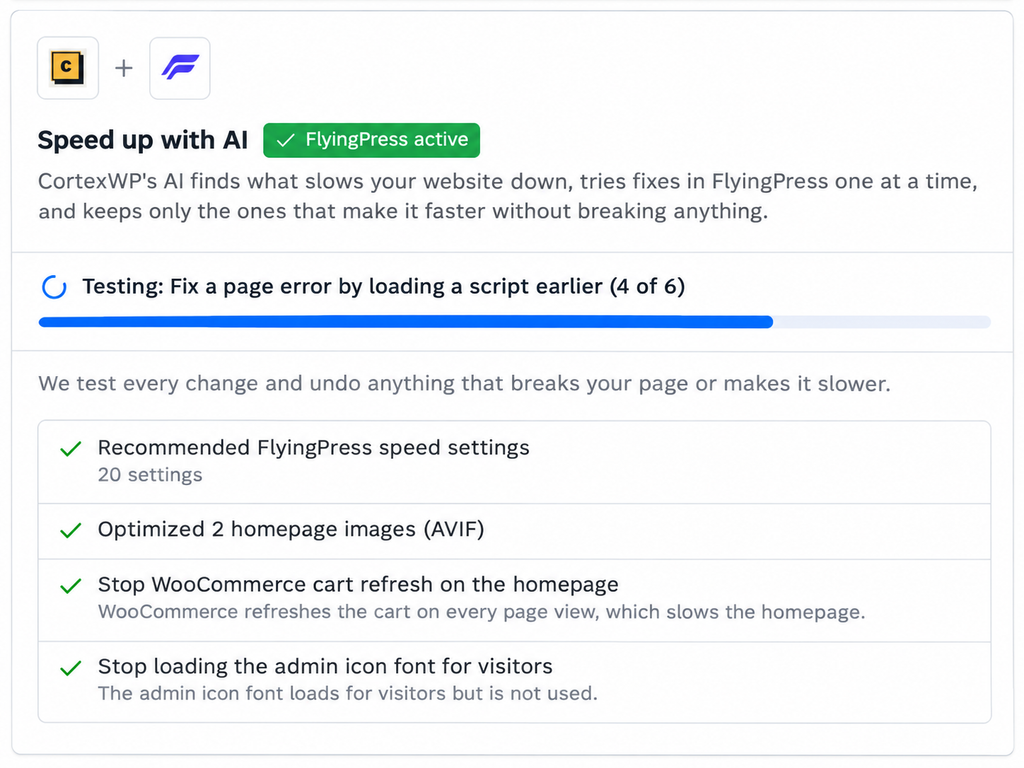
CortexWP combines Google PageSpeed Insights with tests in a real Chromium browser using mobile and desktop views. It checks how your website loads, what appears on screen, and which files take time to download or run. The AI uses these findings alongside your theme, plugins, and current FlyingPress settings to connect a warning to its likely cause. For example, it can distinguish a slow image from a script that keeps the browser busy or a section that appears too late.
- The main content visitors see first. CortexWP identifies the largest visible image or text block and checks whether its loading behavior is delaying the page.
- JavaScript and CSS. It looks for scripts that run during page load, files that hold up rendering, and resources associated with plugins, themes, and third-party services.
- Images, fonts, and page layout. It examines large images, font requests, content that shifts, and sections that are being shown late.
- Browser errors. It records page errors so new problems introduced by a change can be distinguished from problems already present.
- Server response and caching. It compares response timing and checks whether FlyingPress is actually serving a cached page.
This helps the AI connect a PageSpeed warning to something on your site. If the remaining problem needs a hosting change, a simpler layout, or a decision about a plugin, CortexWP gives you steps to follow.
How CortexWP applies, tests, and rechecks improvements
- Measure the starting point. CortexWP records starting speed scores, browser findings, and the current settings.
- Apply the recommended FlyingPress settings. It rebuilds the page cache, verifies caching, and checks for page errors. If script delays introduce errors, it can let the affected scripts load earlier or use a more conservative loading method.
- Choose further changes from the evidence. Built-in checks and AI analysis identify specific improvements worth testing.
- Test each additional change. CortexWP applies it, refreshes the page cache, and measures again on mobile and desktop. It compares the first view and the view after interaction, when delayed scripts have had a chance to run.
- Keep or undo the change. New page errors, a significant unexpected visual change, a page that no longer loads or caches correctly, or a meaningful performance drop can cause that change to be undone. When browser timing alone suggests a slowdown, CortexWP can double-check it with PageSpeed before deciding.
- Review and finish. CortexWP measures the final result. If scores did not improve, or your answer changes the next step, the AI can review the evidence again and suggest another round of tests. It then refreshes the site-wide cache and checks the page cache again.
If delaying several third-party scripts together causes a problem, CortexWP can undo that group and try the scripts individually. Its visual comparisons also account for variation between repeated views, such as a rotating banner. A change marked Kept passed the checks; it does not necessarily mean that change alone raised the PageSpeed score.
Example: suppose a tracking script runs before visitors can read your content. CortexWP can test delaying it. If the change introduces a browser error or an unexpected visual difference, it undoes that change. It can then test a narrower adjustment, such as delaying other scripts separately. The report shows which changes were kept and why others were undone.
WordPress speed optimization features CortexWP manages with FlyingPress
CortexWP starts with recommended settings, then adjusts supported options as it investigates your website. The changes kept on your site depend on what the tests find.
| Area | What it does for your website |
|---|---|
| Page caching and mobile cache | Serves ready-made pages instead of rebuilding them for each visit, reducing server work. CortexWP enables mobile caching and checks for actual cached responses. |
| Cache preloading | Rebuilds cached pages after changes so visitors can receive the updated version. CortexWP waits for cache preloading when needed before accepting later measurements. |
| CSS and JavaScript minification | Makes supported CSS and JavaScript files smaller by removing unnecessary characters, reducing how much visitors download. |
| Unused CSS | Uses FlyingPress to reduce styles the page does not need and can retain specific styles if they are required. |
| JavaScript loading | Adjusts when scripts run, including third-party scripts and specific scripts identified during analysis. Scripts that need to run early can be excluded from delays. |
| External CSS and JavaScript | Enables FlyingPress’s local hosting of supported third-party files to reduce reliance on external requests. |
| Lazy loading and image sizing | Delays offscreen media and enables responsive image sizing. The main image can be excluded from lazy loading when it needs to appear immediately. |
| Video embeds and avatars | Uses lightweight YouTube placeholders and locally hosted Gravatar images to reduce work during page load. |
| Font loading | Preloads fonts, optimizes Google Fonts, and shows fallback text while fonts load so visitors can start reading sooner. |
| Lazy rendering | Postpones rendering suitable offscreen sections. CortexWP can exclude sections that need to appear immediately or are involved in layout changes. |
| Link preloading | Enables FlyingPress’s link prefetching to prepare likely next pages for visitors. |
| WordPress overhead | Disables emoji overhead and controls WordPress background activity. It can also test removing unnecessary block styles, admin icons, embed scripts, or an older JavaScript compatibility helper. |
| Image compression and formats | With your choice, uses FlyingPress to compress eligible images or convert them to AVIF or WebP. |
| Core Web Vitals tracking | Enables FlyingPress’s tracking of visitor experience. Review those real-user trends in FlyingPress alongside CortexWP’s before-and-after test results. |
| Database clean-up | With your confirmation, removes supported clutter and enables weekly clean-up through FlyingPress. |
Targeted improvements beyond FlyingPress settings
Some findings call for a small change to what WordPress loads. CortexWP can test these additional improvements when the evidence supports them:
- Load an important background image earlier so the browser discovers it sooner.
- Connect earlier to an external server the page needs.
- Stop an unnecessary plugin script or stylesheet from loading where it is not needed.
- Remove unused WordPress block styling where a classic-theme layout does not need it.
- Reduce unnecessary WooCommerce cart-refresh requests outside the cart and checkout.
These changes go through the same additional-change checks. When the better solution involves replacing a heavy plugin, simplifying a heavy page layout, or upgrading hosting, the report explains what you can do next.
Optimize WordPress images with AVIF, WebP, or compression
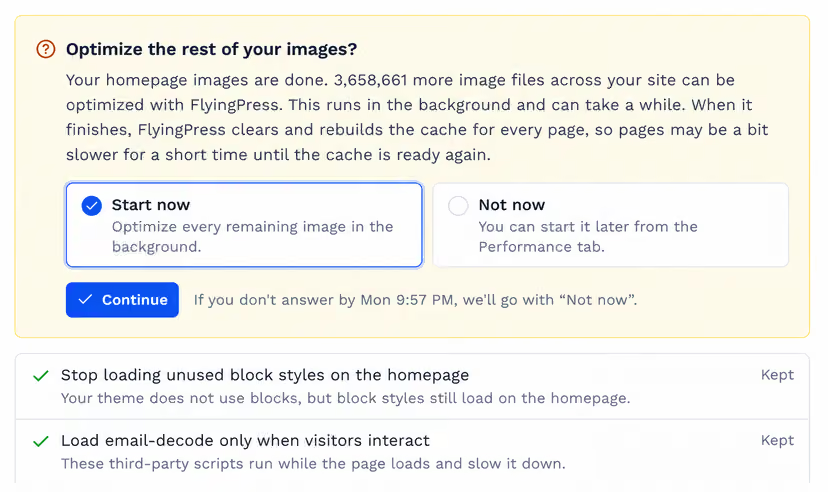
When CortexWP finds eligible, unoptimized images on your website, it asks how you want FlyingPress to handle them. Choose AVIF, WebP, Keep the original format, or Don’t optimize images. Keeping the original format still allows compression. The choice appears when eligible images are found; you can skip it and continue with the other improvements.
CortexWP first optimizes eligible images identified during the speed-up. Choosing a format also enables FlyingPress to optimize new uploads using that choice. It asks separately before processing the remaining image library. You can also open Performance → Images, choose a format, and select Optimize all images later.
The Images view shows progress and available size savings. Site-wide image optimization continues in the background and may finish after the speed-up report is ready. FlyingPress clears and rebuilds the site’s cache when it finishes. Pages may briefly load more slowly while that cache is rebuilt; wait for the image completion notification before reviewing the final image results.
Choose whether to clean up your WordPress database
If CortexWP finds enough supported database clutter, it asks whether to clean it up. This can include old post revisions, spam comments, trashed content, and expired temporary entries. The question describes what was found.
Choose Clean up to remove the supported items and keep the database tidy weekly with FlyingPress, or Not now to leave it alone. Keep revisions or trashed content you still need before approving removal. This clean-up does not optimize database tables, and stopping the speed-up does not restore deleted entries.
Close the page and get notified when you are needed
You do not need to stay on screen or keep the browser tab open. The speed-up runs in the background. Return to the site’s Performance area to see its progress, answer questions, or read the result.
CortexWP asks for confirmation before changing FlyingPress settings at the start, before image optimization, and before database clean-up. It may also ask a site-specific question when the next improvement depends on your preference, such as whether a particular website feature is needed.
If a question still needs your answer after three minutes, CortexWP sends an input-needed notification. Questions appear in the app as soon as they are ready. Activity records input requests and completion, and email alerts follow your Notifications settings. Open Notifications from your user menu to check Speed-up needs your input, Speed-up finished, and Image optimization finished.
If a question is left unanswered for three days, CortexWP uses the default shown on that question. For image optimization and database clean-up, the default skips the optional work. The run can wait for your answer when it needs that decision to continue.
Run a FlyingPress cache check on your important pages
Cache check is a separate test you start from CortexWP. It compares selected pages with FlyingPress optimization bypassed and with the normal optimized page. Both desktop and mobile are checked, so you can find a menu, layout, or button that behaves differently on one device.
- Open your site and select Performance → Cache check.
- Use Choose pages to check to review the shared page list in Visual Regression settings. Cache check uses the same page URLs you set for visual regression tests, so updating that list changes the pages checked by both. Include important public pages such as a landing page, contact page, or product page. See our WordPress visual regression testing guide to set up those URLs.
- Return to Cache check and select Run check. Wait for an active speed-up to finish first.
- Open a result, switch between desktop and mobile, and move the before-and-after slider to inspect differences. Review the numbered findings beside the screenshots.
CortexWP verifies FlyingPress cache evidence for each device before comparing the page. It checks appearance and supported interactions such as menus, tabs, accordions, and buttons. Visual findings and interaction findings are marked on the screenshot so you can locate the affected area.
A page without confirmed cache evidence is labeled Not cached – Skipped. A skipped result is not a pass. Review the reason and whether the page should be cached. The comparison uses your shared acceptable-change settings and excluded areas; see our WordPress visual regression testing guide for setting up those pages.
Cache check reports differences; it does not change FlyingPress settings or automatically repair the findings. Its visual comparison result is separate from a PageSpeed performance score. It also does not complete purchases or submit forms, so test those important customer journeys yourself. CortexWP records a notification in Activity when the cache check finishes. Starting another check replaces the previous finished cache-check report.
Read your WordPress speed optimization report
Open Speed up with AI after completion to compare the available before-and-after mobile and desktop PageSpeed scores. The report has four views:
- Overview: the main findings and results.
- To do: steps for improvements that need your input, such as changing content or asking your host about response time.
- PageSpeed issues: findings from the initial analysis and their outcomes, including Fixed, Improved, Handled, Needs you, or Outside your site.
- Changes: what CortexWP kept, undid, or skipped, with the available explanation.
Review the remaining tasks as well as the scores. A slow hosting response, an oversized design, or a third-party service may still need attention after the settings have been improved.
Understand PageSpeed scores and Core Web Vitals
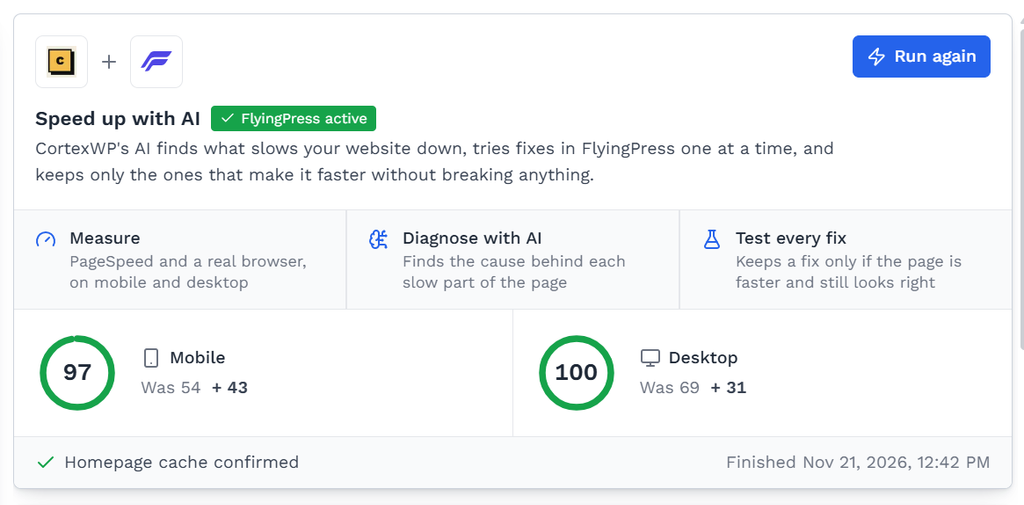
CortexWP repeats PageSpeed measurements and uses the middle result to reduce the influence of an unusually fast or slow test. Scores can still vary with network conditions, server load, and page content.
Largest Contentful Paint (LCP) describes when the main visible content appears. Cumulative Layout Shift (CLS) measures unexpected movement on the page. Interaction to Next Paint (INP) describes responsiveness to user interaction. These are the Core Web Vitals; a PageSpeed performance score is a separate lab result.
A better lab score can show progress immediately. Real-user data in PageSpeed Insights covers a trailing 28-day period, so it will not instantly reflect a new speed-up. Use Google’s explanation of PageSpeed Insights to interpret the difference. Use the speed-up report for the changes just tested and real-user data for the longer-term visitor experience.
Stop a speed-up or undo its settings changes
While a speed-up is active, open Stop and choose:
- Stop and keep changes: keep changes already tested. An additional change still being tested is undone.
- Stop and undo changes: restore the FlyingPress settings and CortexWP performance fixes saved before this run.
Optimized images remain optimized. Undo is not a full-site restore and does not recover database entries already removed. Wait for the stop to finish before starting another operation.
Troubleshoot a speed-up or cache check
| What you see | What to do next |
|---|---|
| FlyingPress is missing, inactive, or unlicensed | Follow the setup step under Speed up with AI. If the plugin was removed or deactivated after setup, activate it again and recheck. |
| The start button is unavailable | Read the reason beside the control. Resume a paused site or let conflicting work finish. Follow the token prompt if the account needs more tokens. |
| The run is waiting for an answer | Open Speed up with AI, choose an option, and click Continue. |
| FlyingPress cache cannot be confirmed | Let preloading finish. If the report identifies a cache conflict, review the host or CDN cache settings with your hosting provider. |
| FlyingPress cannot optimize the page | Check and reactivate the FlyingPress license for this exact domain, especially after cloning or moving a site. Follow the report’s license instructions before retrying. |
| Image optimization stops progressing | Check that WordPress scheduled tasks are running, then try again from Images. |
| A change was undone or scores barely moved | Read Changes and To do. CortexWP may have found a compatibility problem, no meaningful gain, or a limitation that requires a content or hosting change. |
| Cache check finds a difference | Open the affected page and device, inspect the marked area, and confirm the behavior on your site before deciding what to change. |
What if your WordPress website is down?
If your website does not load, shows a fatal error, or returns an HTTP 500 error, use the CortexWP WordPress AI assistant to investigate. It can check the site connection, inspect available PHP errors and logs, and examine the relevant plugin or theme files to help identify the cause. Follow our guide to diagnosing and fixing WordPress errors with CortexWP AI.
Once the site is loading again, use Speed up with AI to investigate slow loading. During a speed-up, CortexWP checks whether its tested changes introduce page errors or prevent the page from loading correctly. Your broader uptime monitoring remains useful for detecting availability problems.
Can I use CortexWP if I already have FlyingPress?
Yes. Open Speed up with AI and let CortexWP check your installation and license. Review the settings confirmation before starting, because CortexWP will replace performance-related settings. It can then investigate your website, test further improvements, and show what changed.
Can CortexWP optimize a WooCommerce website?
CortexWP recognizes WooCommerce during its analysis and can test relevant performance improvements, including reducing unnecessary cart-refresh requests. Use Cache check for suitable public store pages, and manually verify add-to-cart, checkout, payment, and account flows after changes. Personalized pages may intentionally bypass page caching.
What does CortexWP AI add to FlyingPress?
FlyingPress provides the caching and optimization features. CortexWP brings them into a guided process: investigate your site, apply recommended settings, use AI to select further improvements, test the result, and explain what still needs attention. You also get background progress, questions when a choice is needed, and a separate cache comparison for selected pages.
Do I need another WordPress speed optimization plugin?
This feature uses FlyingPress for caching, CSS and JavaScript optimization, images, fonts, and database clean-up. You do not need to add another optimization plugin to follow this guide. If your host or another plugin already handles caching or script loading, review the overlap before starting. Your existing CDN settings stay in place.
How long does a speed-up take, and does it use AI tokens?
Time depends on your site’s response, cache rebuilding, the number of changes tested, and any answers CortexWP needs from you. The progress view shows the current task. AI analysis uses your CortexWP token allowance; the dashboard checks the starting balance, and actual usage depends on the run. See CortexWP plans for the available allowances. FlyingPress requires its own active license.
Start your CortexWP AI speed-up
Open CortexWP, select your site, and go to Performance → Speed up with AI. Confirm the FlyingPress settings change, choose how to handle optional work, and let CortexWP investigate and test improvements. When it finishes, review the report and run Cache check on your important pages.